Gamma
The Gamma is a compact, robust Microhard pMDDL24x0 communication module designed to deliver reliable data connectivity in embedded, mobile, and field-deployed systems. Supporting standard LAN, WAN, USB, and serial interfaces, Gamma provides flexible integration with host platforms, networking equipment, sensors, and external communication devices while maintaining a practical embedded-system footprint. Its support for all module power modes enables efficient operation across a wide range of operating scenarios. Ideal for wireless communication in unmanned, industrial, and mission-critical systems, Gamma provides dependable data links and adaptable I/O for platforms that require reliable connectivity in demanding environments.
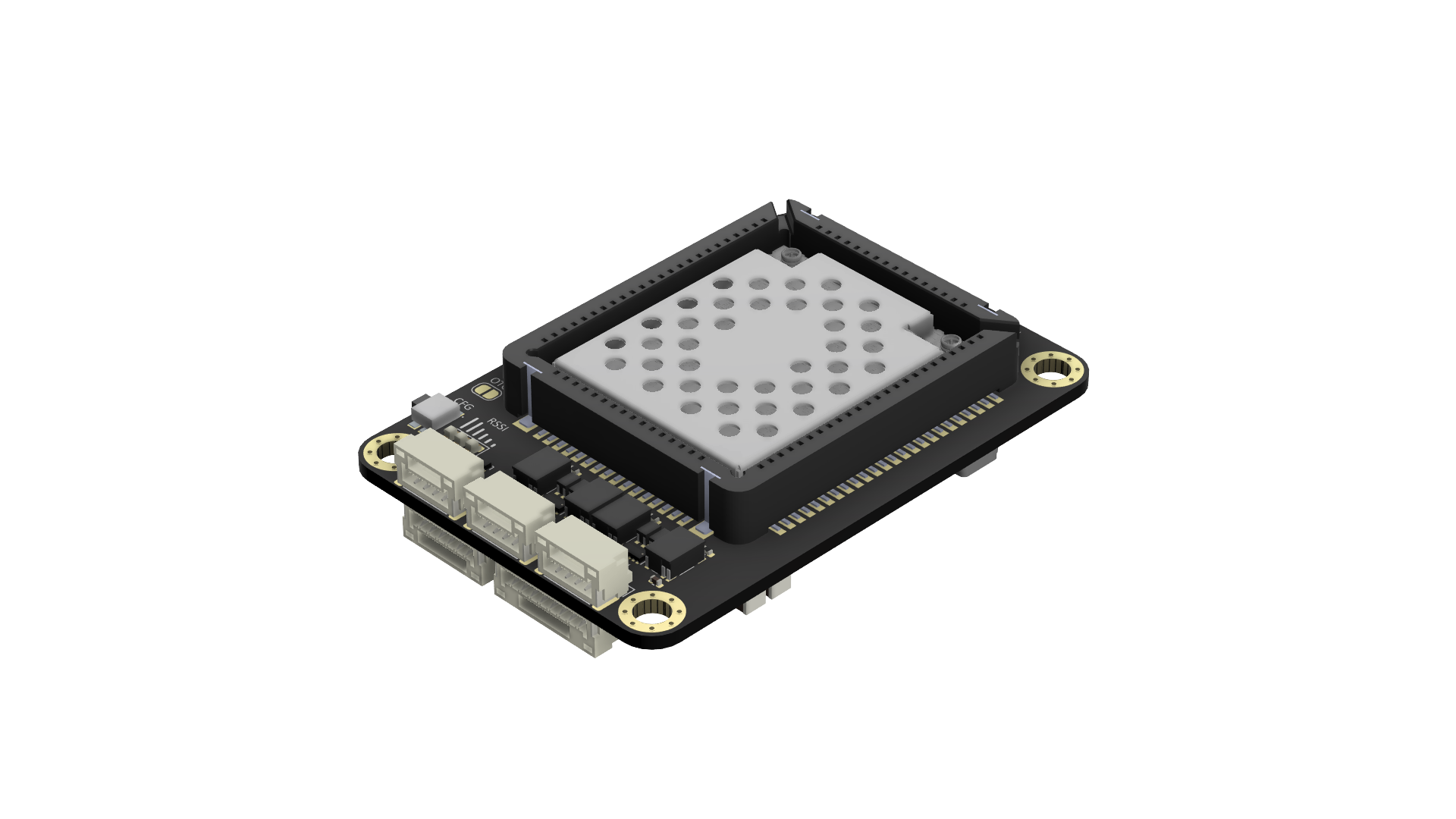
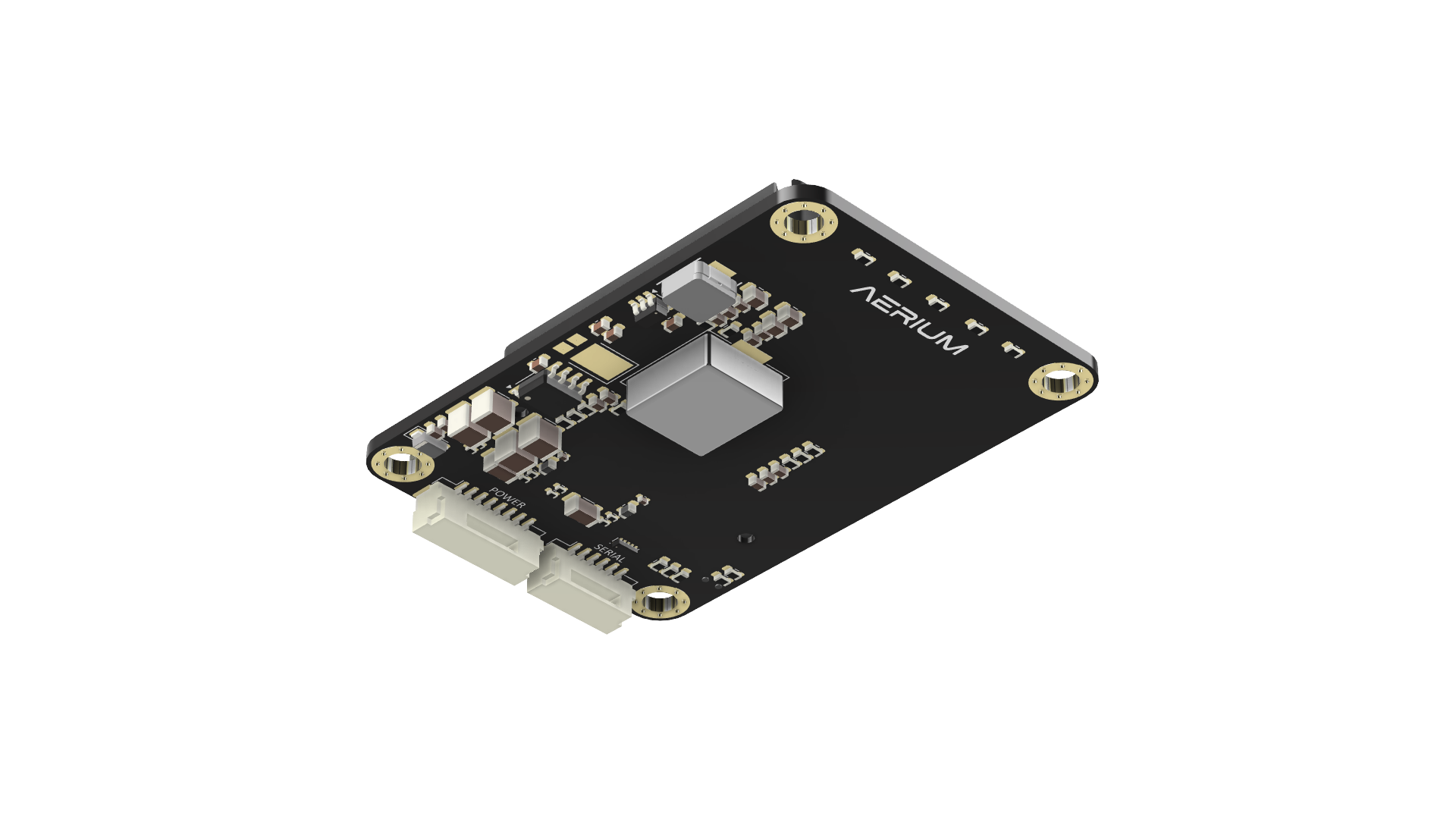
General
- The Gamma leverages the high-performance Microhard pMDDL24x0 architecture to provide reliable, long-range wireless data connectivity for industrial and mission-critical systems.
- Engineered for versatility, it supports a wide array of standard interfaces including LAN, WAN, USB, and serial, ensuring seamless integration with diverse host platforms and sensors.
- Features a robust, low-SWAP (Size, Weight, and Power) design that maintains dependable communication links even in the most demanding field environments.
Resources
Mechanical
-
Weight
- Carrier Board w/o module: 15 [g]
- Carrier Board w/ module: 31 [g]
-
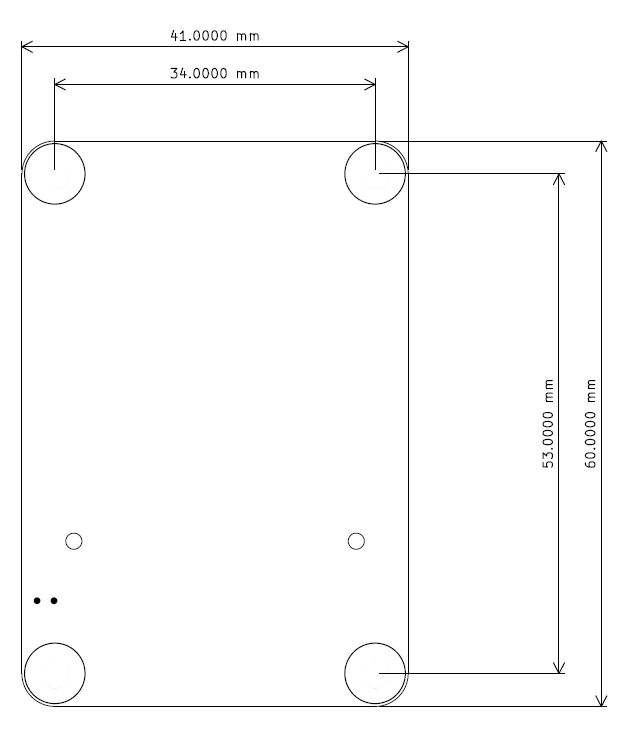
Dimensions
- Board dimensions are defined in millimeters.
- Mounting hole size is M3.
Electrical
General
- For each connector specification, the pinout orientation is determined by an arrow pointing to pin 1.
Interface Specifications
| Interface | Connector Type | Primary Use Case |
|---|---|---|
| Power | JST-GH 8-Pin | Regulated DC input for robust field operations |
| Serial | JST-GH 6-Pin | Autopilot telemetry, sensor data, legacy comms |
| USB | JST-GH 4-Pin | High-speed configuration, diagnostics, data offloading |
| LAN | JST-GH 4-Pin | Local networking, ground station data tethering |
| WAN | JST-GH 4-Pin | External data links, wide-area network expansion |
Compatible Modules
- Microhard pMDDL2350
- Microhard pMDDL2450
- Microhard pMDDL2550
- Microhard pMDDL2460
- Microhard pDDL1800
- Microhard pDDL900
Specifications
-
Input voltage: 8-60 [V]
-
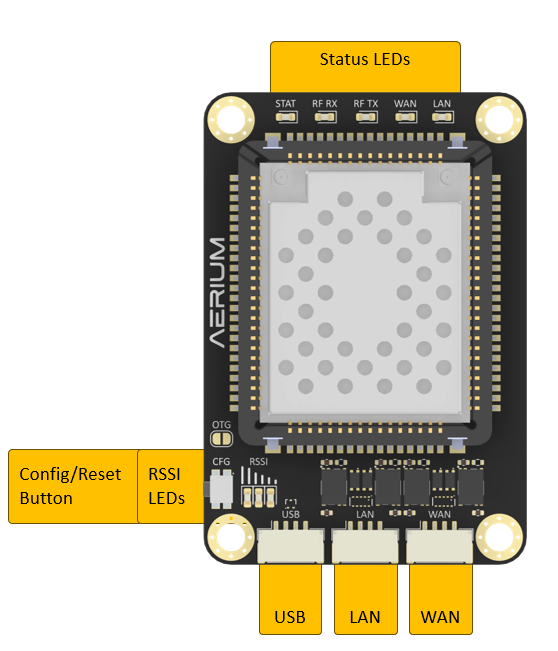
Top View
-
Bottom View
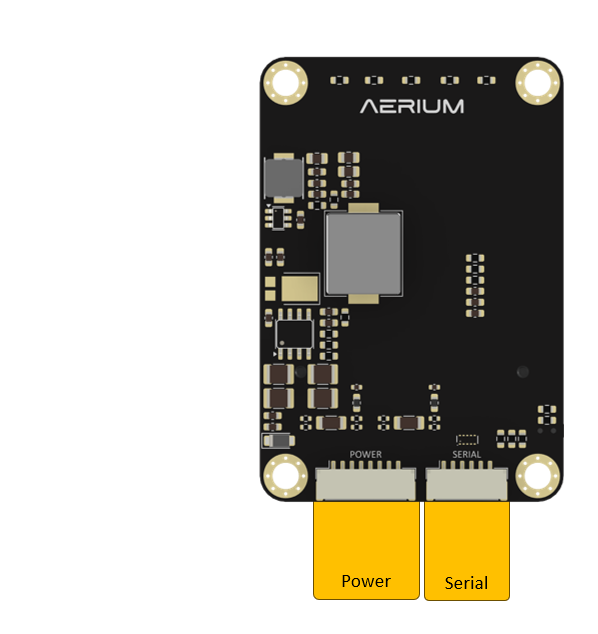
Electrical pinout
- Connector orientation
- JST-GH cables shall be oriented according to the illustration
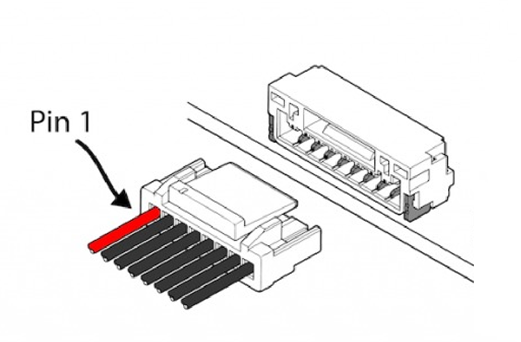
- JST-GH cables shall be oriented according to the illustration
Power
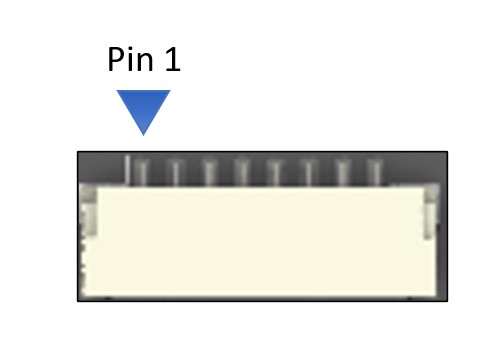
-
Connector Definition
Type Part Number Part Name Board Connector SM08B-GHS-TBT JST-GH Cable Connector GHR-08V-S JST-GH -
Connector Pinout
Pin Name Description Voltage 1 VIN Voltage Input 8V - 60V 2 VIN Voltage Input 8V - 60V 3 VIN Voltage Input 8V - 60V 4 GND Ground GND 5 GND Ground GND 6 GND Ground GND
Serial

-
Connector Definition
Type Part Number Part Name Board Connector SM06B-GHS-TB JST-GH Cable Connector GHR-06V-S JST-GH -
Connector Definition
Pin Name Description 1 VCC Power Output (5 V) 2 TX Telemetry TX (3.3 V logic) 3 RX Telemetry RX (3.3 V logic) 4 CTS Clear to Send (3.3 V logic) 5 RTS Ready to Send (3.3 V logic) 6 GND Ground
USB

-
Connector Definition
Type Part Number Part Name Board Connector SM04B-GHS-TB JST-GH Cable Connector GHR-04V-S JST-GH -
Connector Pinout
Pin Name Description Voltage 1 VBUS OTG Power Input 5V 2 D- USB0 Data Minus 0V - 3.3V 3 D+ USB0 Data Plus 0V - 3.3V 4 GND Ground GND
LAN
-
Connector Definition
Type Part Number Part Name Board Connector SM04B-GHS-TB JST-GH Cable Connector GHR-04V-S JST-GH -
Connector Pinout
Pin Name Description Voltage 1 TX+ Ethernet TX Positive - 2 TX- Ethernet TX Negative - 3 RX+ EthernetRX Positive - 4 RX- EthernetRX Negative -
WAN
-
Connector Definition
Type Part Number Part Name Board Connector SM04B-GHS-TB JST-GH Cable Connector GHR-04V-S JST-GH -
Connector Pinout
Pin Name Description Voltage 1 TX+ Ethernet TX Positive - 2 TX- Ethernet TX Negative - 3 RX+ EthernetRX Positive - 4 RX- EthernetRX Negative -
Quick Start
Initial Setup
- Power & Connect: Attach the appropriate antennas and power sources. Ensure the CPU LED is solid blue.
- Access WebUI: Connect your PC to the LAN port. Set your PC's network to DHCP or a static IP (e.g., 192.168.168.10 / 255.255.255.0).
- Login: Open a browser and navigate to
192.168.168.1. Log in with the default credentials (admin/admin) and follow the prompt to change your password.
Auto-Configuration (Quickest Method)
- Master: Press and hold the CFG button for at least 10 seconds until the CPU LED flashes, then release. It will auto-configure as Master (IP: 192.168.168.1).
- Slave: On the second unit, press and hold the CFG button for 5 seconds until the CPU LED flashes, then release. It will auto-configure as Slave (IP: 192.168.168.2).
- Host Synchronization: Note that after auto-configuration, the host device's Ethernet settings must be compatible with the new IP scheme and network negotiation of the module. Ensure the host is set to match the Auto-negotiation or specific Speed/Duplex settings required by the link.
- Verify: Wait ~60 seconds. Solid RSSI LEDs on the units indicate a successful wireless link.
Manual Configuration (For Custom Networks)
If you require specific network settings (IP addresses, specific Network IDs):
- Set IP: Navigate to Network > LAN and assign a unique static IP to each unit.
- Configure RF: Navigate to Wireless > RF.
- Set the Operation Mode (Master for the first unit, Slave for the second).
- Ensure both units have the exact same Network ID, Compatibility Mode, Channel Bandwidth, and Frequency.
- Click Submit to save changes.
- Test: Connect a PC to the Master unit, enter the Slave’s IP address into a browser, and confirm you can access the Slave’s WebUI over the wireless link.