Configuring the RTC Clock on the NVIDIA Jetson
Introduction
- In this tutorial, we will configure a Real-Time Clock (RTC) on an NVIDIA Jetson module mounted on the Aerium Lumen/Helios carrier.
- This guide ensures that your Jetson keeps accurate time even without an internet connection or NTP server, by using a hardware RTC with a backup battery.
- By the end, your Jetson will boot with a valid date and time directly from the RTC, even in offline or isolated environments.
What You Will Need
Before we dive into the setup, make sure you have the following:
-
Aerium Lumen/Helios carrier board with NVIDIA Jetson module
The Aerium Lumen/Helios NVIDIA Jetson carrier board which includes onboard RTC battery socket. -
Backup coin-cell battery
A compatible coin-cell battery connected to the RTC so that it keeps time when the system is powered off. For example: MS621FE by Seiko Instruments Inc -
Jetson Linux environment
A Jetson running Ubuntu-based JetPack / L4T with terminal access (local or SSH).
Configuring the RTC
Step 1: System Boot
- Power on and boot the board normally
- open CLI either by using SSH or other preferred methods
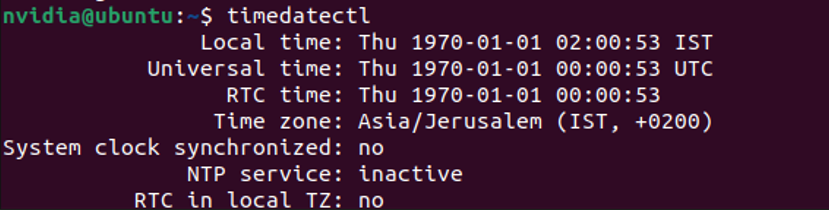
Step 2: System clock sanity check
-
Run the following command to inspect the current status of the system clocks.
Step 3: Update the system clock
-
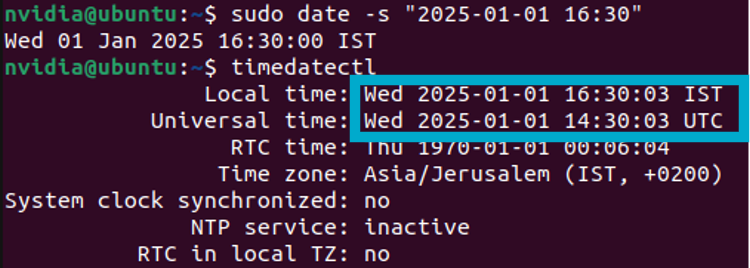
Set the system time either by configuring NTP or running the manual command below:
sudo date -s "2025-01-01 16:30"NOTE: use the actual required time, the text above is an example.
-
Verify the new clock has been set
Step 4: Set the RTC clock
-
Set the system time either by configuring NTP or running the command below:
sudo hwclock --systohc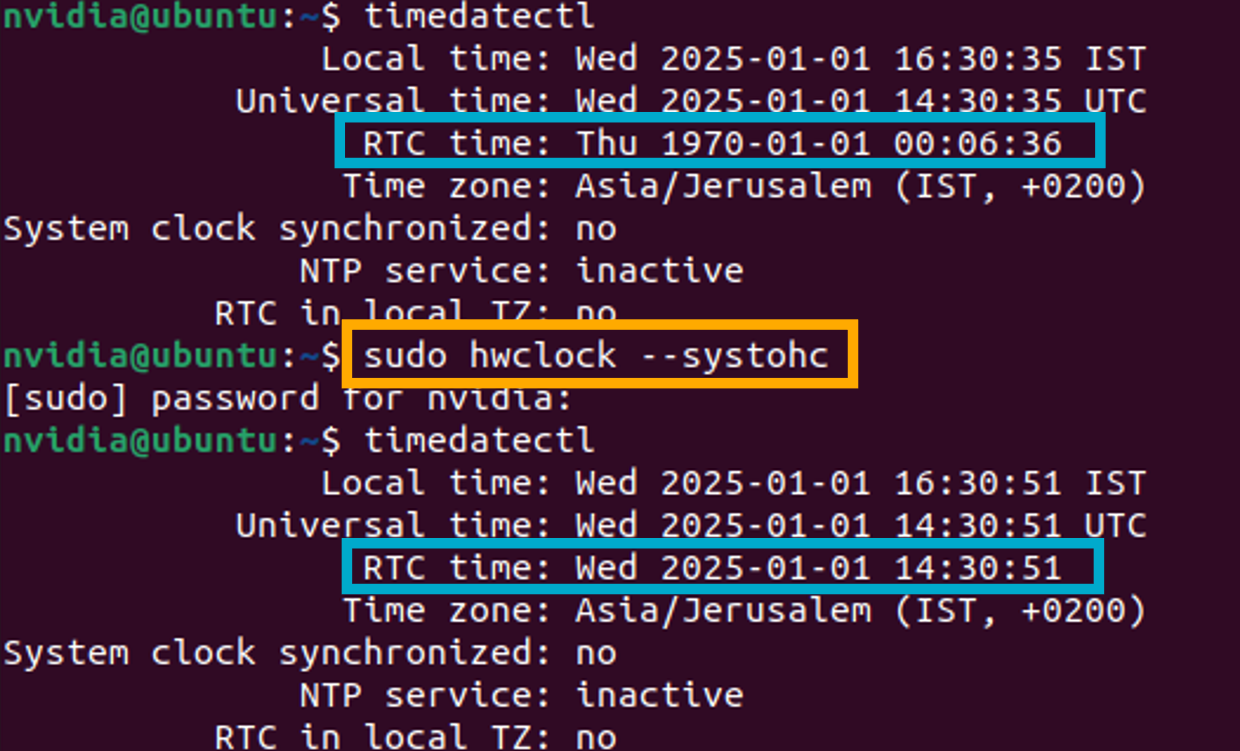
Step 5: Reboot
- Reboot the board and run the command below to verify all clocks are updated and aligned
timedatectl