Flashing NVIDIA Jetson OS Using CLI
Introduction
- In this tutorial, we'll walk you through the process of flashing the NVIDIA Jetson operating system using the command-line interface (CLI).
- This guide is intended for Aerium-supported Jetson platforms and focuses on flashing the OS to an NVMe device using NVIDIA Linux for Tegra (L4T) tools.
- By the end of this tutorial, you will have a fully flashed Jetson system with a predefined user account and the ability to log in over USB networking.
What You Will Need
Before we dive into the flashing process, here’s a list of everything you’ll need to complete this setup:
-
Host Linux PC
A machine running Ubuntu, with sudo privileges. -
Aerium carrier board with NVIDIA Jetson module
A fully assembled carrier board with NVIDIA Jetson installed. -
USB Cable
Used to connect the Jetson to the host PC for recovery mode flashing and USB networking. -
Linux for Tegra (L4T) BSP
Downloaded from NVIDIA and prepared as described below.
How to Set It Up
Prepare the L4T Environment
-
Download the latest Jetson Linux release package and sample file system for your Jetson developer kit from:
https://developer.nvidia.com/linux-tegra -
Enter the following commands to untar the files and assemble the root filesystem:
tar xf ${L4T_RELEASE_PACKAGE}
cd Linux_for_Tegra/rootfs/
sudo tar xpf ../../${SAMPLE_FS_PACKAGE}
cd ..
sudo ./apply_binaries.sh
Navigate to the Linux_for_Tegra Directory
- Ensure you are in the main Linux for Tegra working directory:
cd Linux_for_Tegra
Extract and Run the Helios Script
- Use the instructions in the link to download, extract and execute the script to the relevant Jetson module and carrier board type below:
- Lumen
- Helios
Create a Default User Account
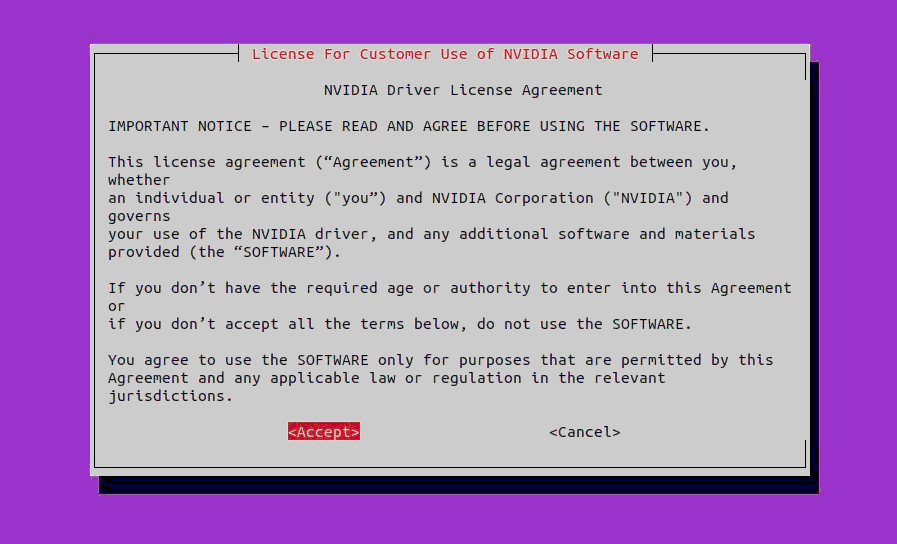
- Create a predefined user account to avoid interactive setup on first boot:
sudo ./tools/l4t_create_default_user.sh -u nvidia -p nvidia -a

- Replace
nvidiawith your required username and password. - Accept the prompts as shown in the reference images.
Put the Jetson Into Recovery Mode
- Power off the board
- hold the FRC button
- Power up the board
- release the FRC button
- The NVIDIA Jetson module is now in recovery mode
Flash the Jetson NVMe Drive
- Connect the Jetson to the host PC using a USB cable.
- From the
Linux_for_Tegradirectory, run the following command:
sudo ./tools/kernel_flash/l4t_initrd_flash.sh \
  --external-device nvme0n1p1 \
  -c ./tools/kernel_flash/flash_l4t_t234_nvme.xml \
  --showlogs \
  --network usb0 \
  jetson-orin-nano-devkit-nvme \
  nvme0n1p1
- The flashing process may take several minutes.
- Monitor the console output for errors or warnings.
Verify Flash Completion
- Once flashing is complete, you should see a success message similar to the reference image.

Post-Flash Steps
Power Cycle the Jetson
- Disconnect power from the Jetson.
- Reconnect power and allow the system to boot normally.
Log In Over USB
ssh nvidia@192.168.55.1
- Replace
nvidiawith the username you created earlier. - Enter the corresponding password when prompted.
Final Verification
- Confirm that the system boots successfully.
- Verify that the user account is properly configured.
- Ensure the NVMe device is mounted and operational.